Prerequisites:
- Basic understanding of Docker and Docker Compose.
- Docker installed on your machine.
- A text editor or IDE of your choice
(1) Creating the Three-Tier App:
Step 1: Create Frontend Tier
This tier is in charge of displaying information to the user and
managing user interactions. It encompasses various user interfaces
such as web browsers, mobile apps, or desktop applications.
My Frontend Tier consists:
- frontend: Contains the static files for the frontend
- frontend-nginx: Contains the Dockerfile and configuration for serving the frontend using Nginx
.png)
Step 2: Create Backend Tier
This tier encapsulates the core functionality of the application,
including processing user requests, executing calculations, and
communicating with the data storage layer. It may involve application
servers, APIs, and microservices.
I have created the Backend using Node.js.
.png)
Step 3: Create Database Tier
This tier is responsible for storing and organizing the data that the
application uses. It can utilize a relational database, NoSQL
database, file system, or any other data storage mechanism.
I have used MySQL for my Database Management System.
.png)
(2) Creating the Dockerfiles for Three-Tier App:
Step 1: Create Dockerfile for Frontend
frontend-nginx -> Dockerfile:
.png)
frontend -> nginx-conf:
.png)
Step 2: Create Dockerfile for Backend
Dockerfile:
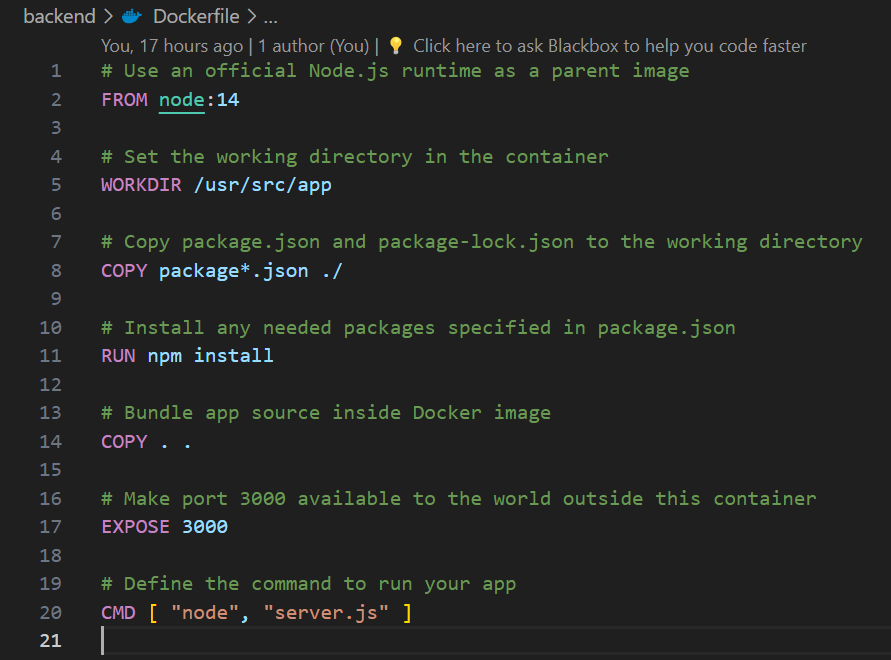
Step 3: Create Dockerfile for MySQL Database
Dockerfile:
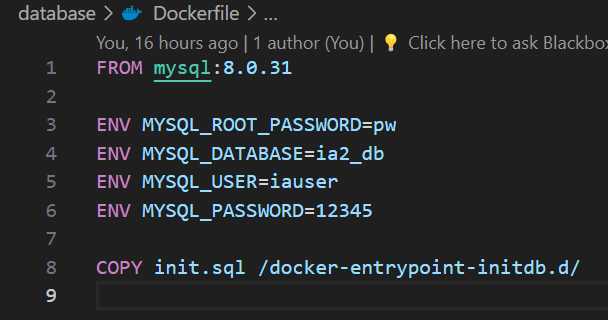
(3) Creating the Docker Compose File:
Create Docker-Compose for the Application
docker-compose.yml:
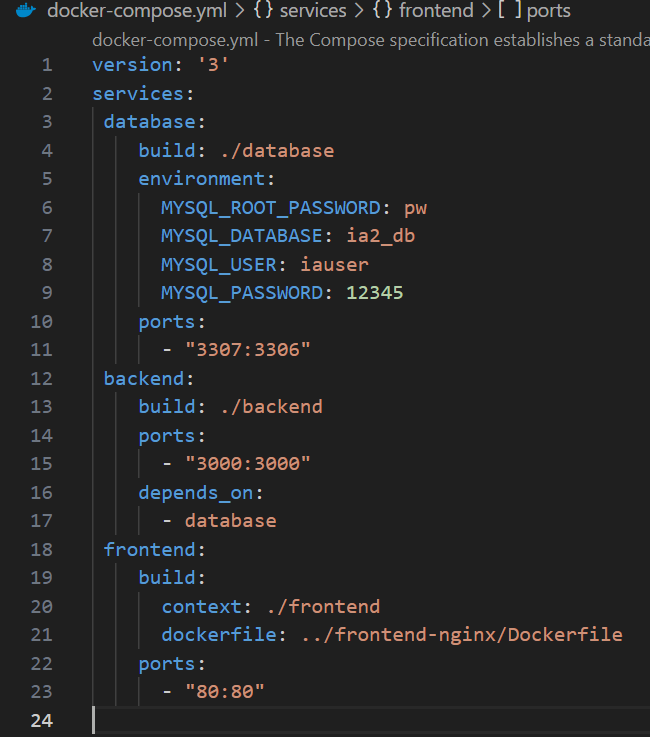
(4) Building and Running the Application:
Run the following command in the terminal:
docker-compose up --build
.png)
.png)
(5) Application is Successfully Built:
docker ps
.png)
Docker Desktop:
.png)
(6) View Running Application:
1. Frontend:
.png)
2. Backend:
.png)
(7) Manupulating MySQL Database via Docker:
Run the following command in terminal:
docker exec -t container_id mysql -u name_of_user -p
.png)
Manupulate the database:
.png)
(8) Push the Docker Images on Docker-Hub:
Run the following commands in terminal:
docker tag SOURCE_IMAGE TARGET_IMAGE[:TAG]
docker push TARGET_IMAGE[:TAG]
Step 1: Tag and Push Frontend Image
Tag and Push:
.png)
Image:
.png)
View Image on Docker-Hub:
Frontend-Image-URL.png)
.png)
Step 3: Tag and Push Database Image
Tag and Push:
.png)
Image:
.png)
View Image on Docker-Hub:
Database-Image-URL